
Pension scheme re-enrolment: using payroll assessment
This guide will help you use the payroll assessment system for your pension schemes' re-enrolment, a process otherwise known as cyclical re-enrolment. It provides step-by-step instructions for the four key stages of your re-enrolment duties.
Key information
- On this page you'll find a step-by-step guide on using the payroll assessment system to process your re-enrolment.
- You’ll need to be registered for your scheme’s auto enrolment dashboard and be authorised to act on behalf of your company.
Using the payroll assessment system
With the payroll assessment system you manage your assessments, issuing statutory communications and keeping records within your organisation.
For re-enrolment you'll use your own payroll records to decide who should be re-enrolled. You'll tell us who we've to issue re-enrolment communications to through your auto enrolment dashboard.
Step one: choose a date
You need to choose one suitable re-enrolment date that will apply to all eligible jobholders; you can’t choose different dates for different categories of employee, for example weekly and monthly paid employees.
As you’re using our payroll assessment system, then you should think about the impact your re-enrolment date will have on your business processes. You’ll need to agree the most suitable date with your payroll provider.
How to select your re-enrolment date online using the payroll assessment system
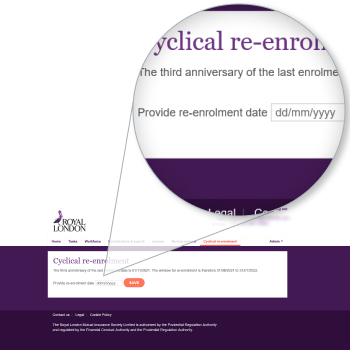
Once your re-enrolment window is open, click on the cyclical re-enrolment tab on the right-hand side of the navigation panel on your dashboard and enter the re-enrolment date you’ve selected and hit save.
Step two: update and review employees' data
You need to make sure your employee data is up to date so that you know who to re-enrol. It’s a good idea to check you have the right contact details for your employees. You should also check that you're not including anyone who has left your employment.
- If you need a reminder of how to update your employee details watch our auto enrolment dashboard videos.
- Once your data is up to date you then need to review them to make sure they should be included in your assessment.
Reviewing your employees using the payroll
assessment system
You’ll need to review your employees on your payroll system and compile a list of employees that need to be assessed. For a reminder of who should be selected for re-enrolment visit our guide Re-enrolment: what you need to know.
You’ll then need to assess these employees on their age and earnings as at your chosen re-enrolment date.
Step three: assessment and communication as part of re-enrolment duties
At the re-enrolment date, you’ll need to check which employees are eligible for re-enrolment. This means that any employees you’ve not excluded need to be assessed for age and earnings and if they're eligible they should be re-enrolled.
It's your duty to make sure that communications with employees affected by re-enrolment are issued. You’ll need to send them statutory communications telling them that they’ll be re-enrolled, what this means for them and that they can choose to opt out.
As you’re using our payroll assessment system, you’ll assess your employees using your own payroll system then you’ll need to re-enrol existing employees or add new employees to your dashboard and we'll generate their communications for you.
Assessing and communicating employees re-enrolment using the payroll assessment system
Once you’ve reviewed your payroll system and compiled a list of employees that need to be assessed you’ll assess your employees using your own payroll systems.
This will give you a list of employees that will need to be re-enrolled, they’ll either already be on your dashboard because they had previously opted out or stopped paying in and need to be re-enrolled or they will need to be added to your dashboard because they never made a first contribution.
Here's how to add employees for payroll assessment schemes or you can watch our auto enrolment dashboard videos.
Eligible jobholders
As defined by the Pensions Regulator, eligible jobholders:
- earn over £10,000 a year
- are age 22 or over but below State Pension age
- are working in the UK.
You must automatically enrol eligible jobholders into your scheme, and you're required to contribute to their retirement.
For more detail on the different types of employees for auto enrolment, please read the FAQs.
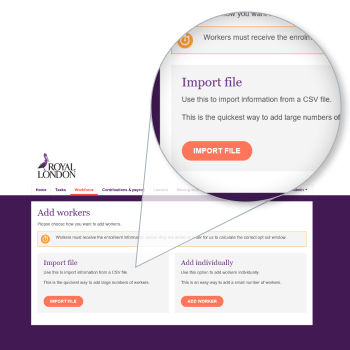
- You can add multiple employees using the import file option on your workforce tab and include the 'enrolment type' as cyclical and add your re-enrolment date for that employee.
- The enrolment date must be your re-enrolment date and it must be the same for all employees who are being re-enrolled. If you enter a different date for any employee being re-enrolled, the file will be rejected.
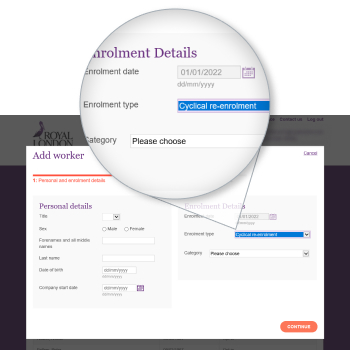
You can also manually add a employee by selecting cyclical re-enrolment as the enrolment type when adding their information.
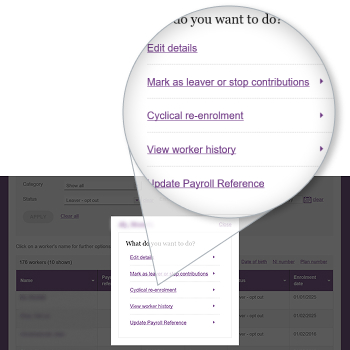
To re-enrol employees who have previously opted out or stopped contributing, select their name and cyclical re-enrolment on the dashboard.
Their previous pension plan will be reinstated, and you’ll see a confirmation screen.
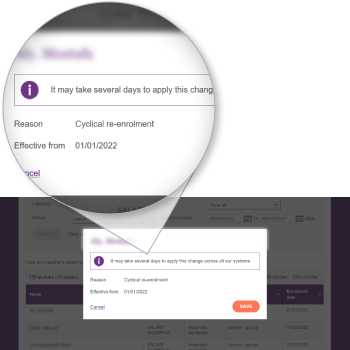
We’ll issue your employees re-enrolment communications for you.
Important information
Please note as you're using the payroll assessment system, we're unable to provide the information for your re-declaration of compliance, please refer to your payroll software provider for further guidance.
Step four: re-declare compliance
As part of your re-enrolment duties, a re-declaration of compliance must be submitted to The Pensions Regulator every 3 years. This applies from the auto enrolment start date or the last re-enrolment date.
- You’ll need to do this through The Pensions Regulator website, you may already have log in details.
- You’ll be asked for information about the numbers of employees in your scheme including those you’ve re-enrolled.
What's next
You don’t have to do anything further for your re-enrolment until your next re-enrolment date in three years time.
Your current chosen re-enrolment date will determine the date your next re-enrolment window opens. We’ll get in touch with you shortly before that happens.
As we'll issue re-enrolment notices on your behalf, it will include information on how your employees can opt out again. Visit our guide Opting employees out for more information.
Need more help?
If you need further advice on choosing your re-enrolment date, deciding which employees to re-enrol or communicating with your employees, you should speak to your financial adviser.
If you have questions about completing the re-enrolment process for your Royal London scheme online, you should contact your Corporate Servicing Team, using the contact us link on your auto-enrolment dashboard.
Frequently asked questions
What are the different types of employee as defined for auto enrolment?
The Pensions Regulator sets out your employee duties based on their age and earnings, they will tend to fall into one of these groups:
Eligible jobholders:
- earn over £10,000 a year
- be aged 22 or over but below State pension age
- working in the UK.
You must automatically enrol eligible jobholders into your scheme, and you're required to contribute to their retirement.
Non-eligible jobholders:
- earn over £10,000 a year
- are aged between 16 or over but under 22 or State pension age or over but under 75
- working in the UK
or
- earn less than £10,000 a year but more than £6,240
- are aged 16 or over but below 75
- and are working in the UK.
If a non-eligible Jobholder asks to join your scheme, you must enrol them and pay regular employer contributions.
Entitled workers:
- earn less than £6,240
- be aged 16 or over but below 75
- working in the UK.
If an entitled worker asked to join your scheme you must enrol them, but you aren't legally required to contribute to their pension.
What's the difference between full run and payroll assessment system?
We’ve provided two versions of the auto enrolment dashboard giving you the flexibility to manage some of your duties in house.
Our payroll assessment system gives you a simplified dashboard that allows your payroll software or provider to handle employees’ assessments and the generation of their statutory communications. This means most of your automatic enrolment duties will be managed directly within your payroll system.
With full run, our software supports you in completing all your automatic enrolment duties including assessing your employees and issuing their statutory communications.
How do I know if I'm using the full run or payroll assessment system?
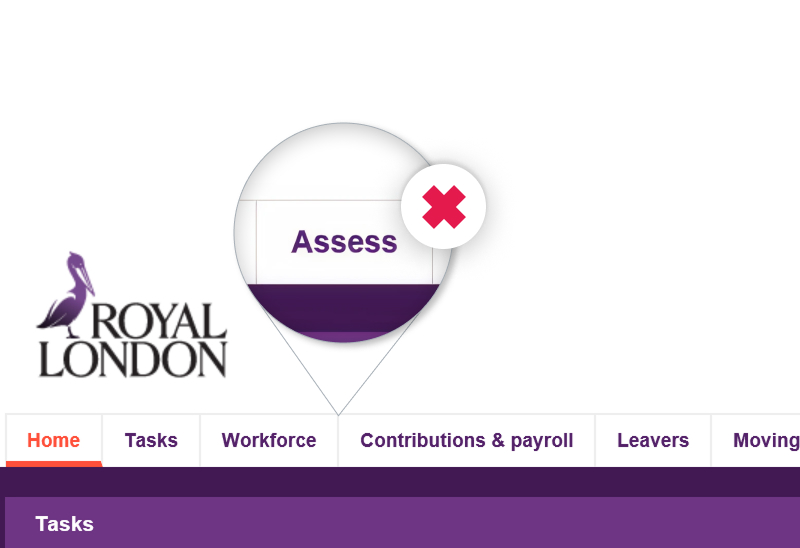
If you’re using the full run system you’ll see an ‘Assess’ tab in your dashboard’s navigation:
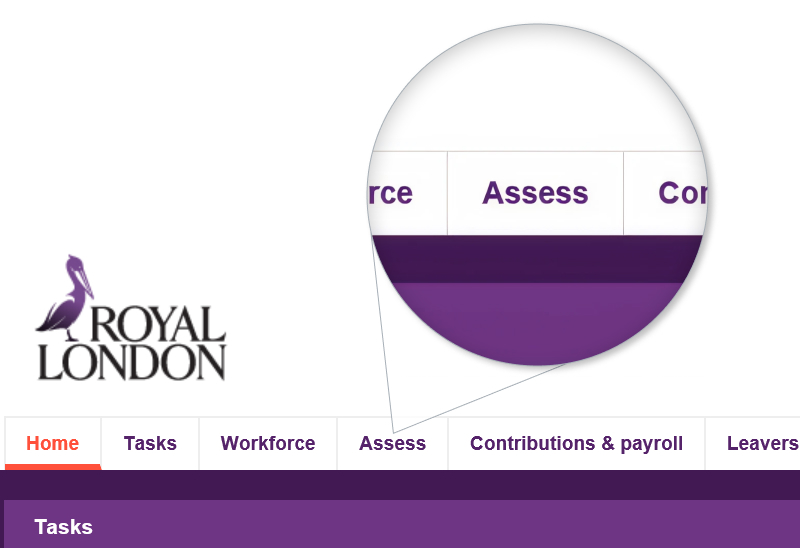
If you don’t have an ‘Assess’ tab this means you’re using our payroll assessment system.
More resources to help you manage your scheme