
Updating employees’ pension plan details
Making changes to your employee records is a two-step process. Once you've made changes, you must remember to confirm your updates.
We'll process your employees' statements as soon as we've received your final payment for the review period.
What you'll need
- Details of any amendments you have to make in a CSV file. You don’t need to include details for employees whose information has not changed.
- Your administrator login details for online service (opens in a new window).
1. Find and select 'Workforce'
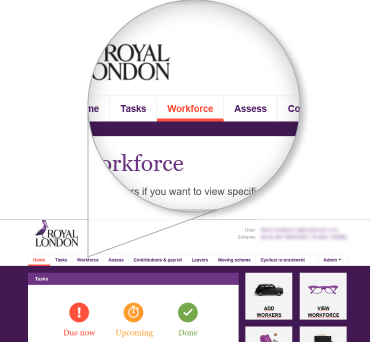
Once you have logged onto the dashboard, look for a navigation menu labelled 'Workforce', just underneath the Royal London logo.
2. Click 'Update Workers'
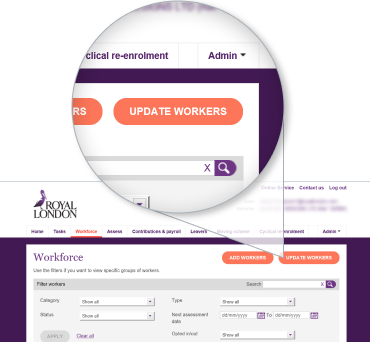
You'll find the 'Update Workers' button on the top right hand corner of the page. The button is orange, you can't miss it.
3. Update your data using a CSV file
You only need to have the data for the employees you need to update, not your entire workforce. To start, download our example CSV file and add your employees data. You'll need:
Mandatory fields
- Title
- First name
- Last name
- National Insurance number
Optional fields (needed only if there are changes to be made)
- Address line 1
- Address line 2
- Address line 3
- Postcode
- Workplace email address
- Personal email address
- Annual salary
4. Upload your CSV file
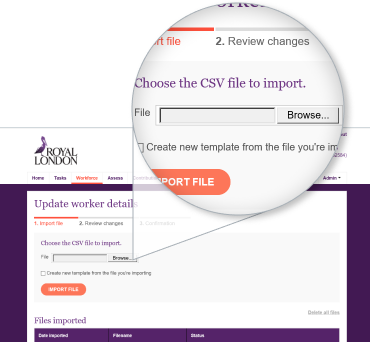
Click on 'Browse' to find your file.
You’ll be asked to select a template, if you’ve never uploaded a file in this way or if your data file headings don’t match any existing templates, you’ll need to create a new template from the file you’re importing:
At the top of the page, you’ll be asked to give your template a name so you can refer to in the future.
Match the fields on your data file against our systems fields using the drop-down menus in the table. This process can sometimes be called 'data field mapping' or just 'mapping'.
Then hit the ‘Create template’ button at the bottom right-hand side of the page to import your file.
You can find out more about templates in the frequently asked questions below.
5. Review your updates
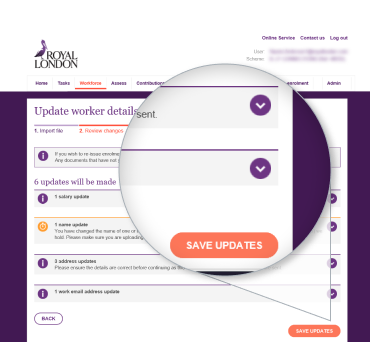
Where you already have a template set up, you'll now see this screen. It shows what amendments have been made and lets you know what you need to do next.
Click on 'Save Updates' to confirm changes.
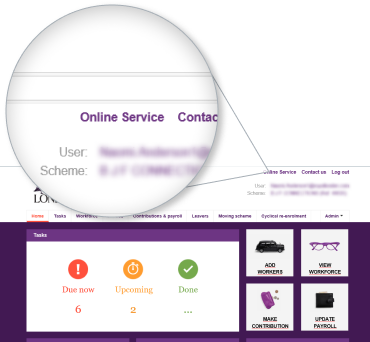
1. Select 'Online Service'
You can find 'Online Service' on the top right hand corner of the page, above the Royal London logo.
If you don't see this screen, skip to step 2.
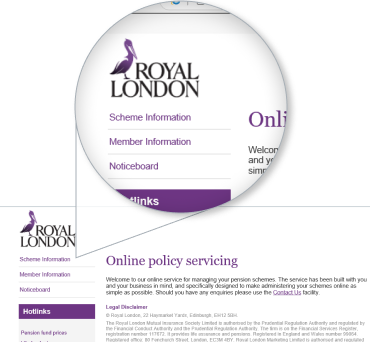
2. Select 'Scheme Information'
'Scheme Information' is the first link displayed on the left hand side menu, just underneath the Royal London logo.
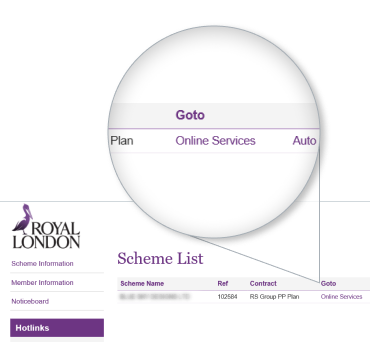
3. Select 'Online Services'
On this page, you'll find the link to 'Online Service' below the title 'Scheme List', to the right, next to 'Contract'.
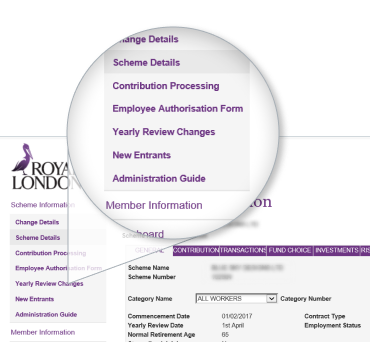
4. Select 'Yearly Review Changes'
To begin, select 'Yearly Review Changes' from the left hand side menu. This is the third link from the top of the 'Scheme Details' section.
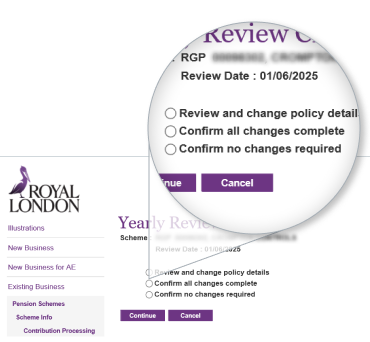
5. Confirm changes
You'll be presented with three options. Select 'Confirm all changes complete'. Click 'Continue'.
How do I find the 'Online Service' link?
From your dashboard you'll click 'Online Service' at the top of the page. Then navigate to your scheme list by hitting 'Scheme information' on the left of the page. The 'Online Service' link will be in your scheme list, to the right, next to the 'Contract' column.
I have a ‘Registration in progress’ message and can’t proceed, what should I do?
For system access issues, contact our employer helpline on:
- Phone 0370 850 1986
- Open Monday to Friday 8am–6pm
How do I access the Yearly review changes section?
Select 'Yearly review changes' from the left-hand side menu under 'Scheme details'. It is the third link from the top.
The Yearly review changes section is missing, what do I do?
Contact our employer helpline on:
- Phone 0370 850 1986
- Open Monday to Friday 8am–6pm
What is a template and when is it used?
A template is a tool you use in the auto enrolment system to match the headings in your CSV file with the system’s fields. It can also allow you to keep your employees in groups, for example head office and other locations. Templates make sure your uploaded data fits the system’s needs and help keep workforce management straightforward.
Use our guide (PDF) to read more about creating templates.
What should I do if I need to confirm I’ve completed all the changes?
You will be presented with three options on the Yearly Review Changes screen. Choose ' Confirm all changes complete' and click 'Continue'.
What should I do if there are no changes required?
If you've no changes to make you can confirm this by following the Step two: Confirm updates process above.
What should I do if the option ‘Confirm all changes complete’ is missing?
You should check the review date displayed on this page and if it’s been longer than six weeks since you’ve processed the final pension contribution for the review period ending on this date, then the review will automatically complete as a no change review.
Review statements will be sent based on the information we already have. If you have changes to make, you should still make them as this will make sure the information we hold is kept up to date.
For example, if your review date is 1 April and you processed the contribution based on your March payroll on 15 April, your review will automatically complete if you’d not confirmed this by the 27 May.
Who should I contact if I’ve further questions about the yearly review?
If you have any other questions about your scheme, please contact your dedicated Corporate Servicing Team.