
Updating contribution rates
To make sure you comply with your pension regulator duties you should let us know when you make changes to your employee’s regular contributions. Here’s how you can do it.
Key information
- You’ll find resources to help you, including the Updating contributions video. The video explains how to update employees individually or use a CSV file to update multiple employees’ information.
- We’ll explain when you can use the update contribution option, when you’ll need to use the edit details option and when you’ll need to contact us.
- You’ll need your administrator login details for online service (opens in a new window).
Updating employees’ contribution rates on the dashboard
You’ll need to update your employees’ details as soon as they are agreed to make sure we have a note of any changes in contributions before you start making them. You can still process your monthly contribution schedule although you may receive a warning message if the change hasn’t completed. Our Updating contributions video walks you through the process step by step.
The video shows you how to add your employees individually or to save time, by using a CSV file to update multiple employees’ details at the same time.
Here’s how you can easily update your employees’ contributions on your auto enrolment dashboard:
View transcript
In this video we’ll look at how to update contribution percentage rates for your employees in the dashboard.
We’ll show you how to do this by either importing a file or updating them individually.
If your employees’ plans are set up to expect fixed contribution amounts, you’ll need to let us know about the changes you want to make. Use the Contact us page at the top right of your dashboard to do this.
In the dashboard, click either the ‘View Workforce’ tile on the right of the page, or ‘Workforce’ displayed on the top menu to start.
Here, you’ll see all the employees currently added to your dashboard.
You can use the filter boxes at the top to find individual employees. You can also view your employees plan number and National Insurance number by selecting the options at the top left of the table.
We’ll start by showing you how to update your employees’ contributions rates by importing a file.
To import a file, click the ‘Update Contribution Rates’ button at the top of the ‘Workforce’ page.
You’ll then see the ‘Import file’ page. The process for importing a file is the same throughout our system.
Before you proceed, you might find our video on adding employees helpful.
Click the ‘Browse’ button at the top of the page to select your file.
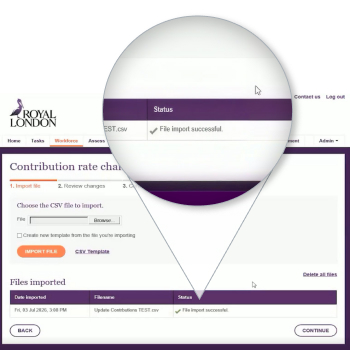
Then once you’ve chosen your file, click the ‘Import file’ button on the page to upload it.
For more information on creating your own CSV file, visit our Help Centre page Updating contributions.
The file has been successfully imported.
Click the ‘Continue’ button at the bottom right of the page to proceed.
You can upload a file containing all your employees, and we’ll identify the ones that need any updates. Alternatively, you can include only the employee records that need to be updated.
This is the ‘Review changes’ page.
At the top of the page, we’ll show you any rate updates that can’t be made.
You can click the tabs to view the employees affected.
If an employee can’t be found in your workforce, please check the details you have provided are correct. If needed, click the ‘Back’ button and upload a new file.
If an employee has no plan number, you’ll need to select the employee individually from the ‘Workforce’ page and update their rates manually using the ‘Edit Details’ option.
We’ll also highlight any employees with fixed contributions. Please make a note of these employees and let us know about any changes you’d like to make using the ‘Contact us’ page.
Finally, employees marked as left employment on your dashboard can’t be updated.
At the bottom of the page, we’ll confirm the updates that will be made. When you’re happy these are correct, click the ‘Save changes’ button at the bottom right of the page to save the changes.
A pop-up message will ask you to confirm that the information provided is correct and that you’re happy to proceed. Click ‘Yes’ to process the change and ‘No’ if you’d like to return to the ‘Review changes’ page.
You’ll now see confirmation that the updates will be made. Click ‘Return to workforce’ at the bottom of the page to return to the workforce page.
The changes will take effect from your employees’ next contribution. They’ll also receive documents confirming the updates and a new plan certificate,
Let’s now look at updating employee contribution rates individually.
You can update the contribution rates of individual employees with a plan number by selecting the employee’s name in the left column. These employees can be identified by the plan number shown beside their name on the ‘Workforce’ page.
If they don’t have a plan number, contribution rates can still be updated using the ‘edit Details’ option.
This employee has a plan number so click ‘Update contribution rates’ to start.
This will open a pop-out window showing the workers current contribution rates and input fields for new contribution rates.
You can update both the employee and employer rates at the same time, or just one if needed. Click ‘Update’ in the bottom right of the pop-out to save the changes.
A pop-up message will ask you to confirm that the information you’ve provided is correct and that you’re happy to proceed. Click ‘Yes’ to process the change and ‘No’ if you’d like to return to the pop-out.
You’ll see confirmation that the updates will be made. Click ‘Return to workforce’ at the bottom right of the page to return to the workforce page.
The updated contribution rates will be confirmed in the employee’s welcome pack when they receive their plan number.
Thank you for watching this video. If you have any questions about managing your scheme using the dashboard, contact your Royal London servicing team.
Things you should know
- You can update employee contribution percentage rates for employees with a plan number and are still employed by you.
- If an employee’s plan is set up for fixed contribution amounts, contact us through your dashboard let us know about the change you want to make.
- Employees who already have a plan number can be updated by importing a file or updated individually through the workforce tab.
- If your employee doesn’t have a plan number, you can still update them using the ‘Edit details’ function.
Employees who have left employment on the dashboard cannot be updated through this process.
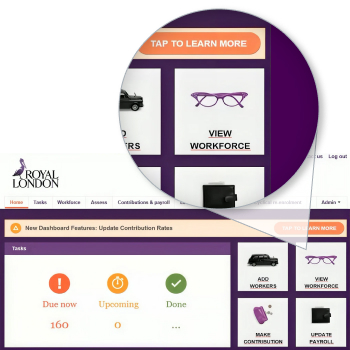
1. Once you’ve logged in, you’ll can select the ‘View Workforce’ tile on the right-hand side of the dashboard or select Workforce from the top menu.
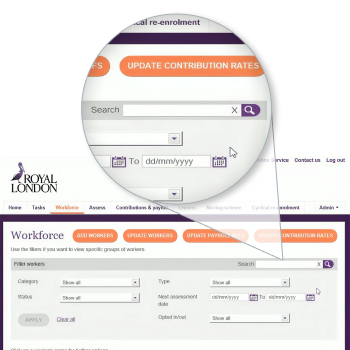
2. Use the filters and search options at the top of the Workforce page to help you find individual employees as needed.
If needed, you can choose the options at the top left of the table to show plan number and National Insurance number.
1. You can create a CSV file from your payroll data and check it meets our requirements or you can download an example update contributions data file and add the details for each employee. You’ll then be able to upload it through the bulk ‘Update Contribution Rates’ option on the on your ‘Workforce’ page.
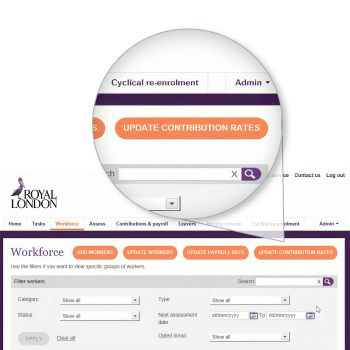
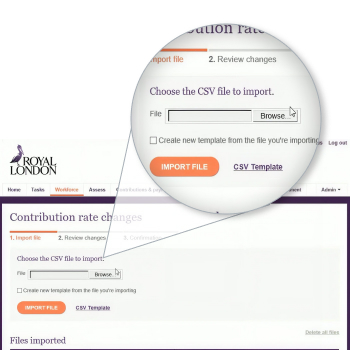
2. You’ll be asked to select your file and then select a template if you’ve never uploaded a file in this way or if your data file headings don’t match any existing templates, you’ll need to create a new template from the file you’re importing:
- At the top of the page, you’ll be asked to give your template a name so you can refer to in the future.
- Match the fields on your data file against our systems fields using the drop-down menus in the table. This process can sometimes be called 'data field mapping' or just 'mapping'.
- Then hit the ‘Create template’ button at the bottom right-hand side of the page to import your file.
If you regularly update employees’ contribution rates, you can re-use a saved template if the headings on your data file are the same as the headings on a data file you’ve previously uploaded.
You can upload a file that includes all employees, and the dashboard will identify which records need to be updated. Alternatively, you can include only the employee records that need a contribution rate change.
3. If successful, your imported file will be shown in the ‘Files imported’ table with a green tick ready to use. If there’s a problem with the file, you’ll be able to download an error file to help you understand and fix any errors. Once your file is ready to use, hit the ‘Continue’ button at the bottom right-hand corner of the page. You’ll then be guided through further pages to finalise your upload:
- The Review changes page shows you all of the changes we can make and those we can’t. You should check any messages showing any rate updates that can’t be made. They will fall into one of four groups:
| What you may see | What it means | What to do next |
|---|---|---|
| Worker not present in workforce. | The dashboard cannot match the employee from the details supplied. | Check the employee details in your CSV file. Correct the file and upload it again if needed. |
| Worker has no plan number. | The employee does not yet have a plan number. | Select the employee individually from the Workforce page and update their rates using the ‘Edit Details’ option. |
| Worker is set up with fixed contributions. | The employee’s plan is set up to expect fixed contribution amounts rather than percentage rates. | Make a note of the employee and use the Contact us page to let us know about the change. |
| Worker is marked a as leaver in Workforce. | The employee is marked as having left employment in the dashboard. | The contribution rate cannot be updated. |
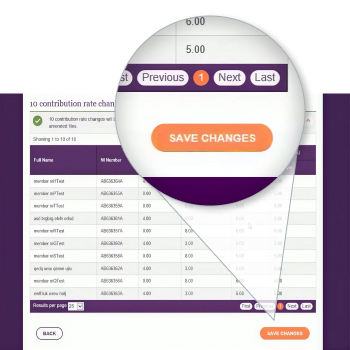
- Finally, check you’re happy with changes that will be made and select ‘Save Changes’ to continue.
- Before you can complete your changes, you need to confirm that all the information is correct in the pop-up window. Click ‘Yes’ to continue. If you need to change any of the details you've entered, you can click ‘No’.
- You’ll then be shown the Confirmation page confirming the changes that have been submitted, if you’re happy with these, select ‘Return to workforce’ at the bottom right-hand side of the page to finish.
Or updating them manually one at a time
You can update the contribution rates of individual employees through the workforce tab if they have a plan number.
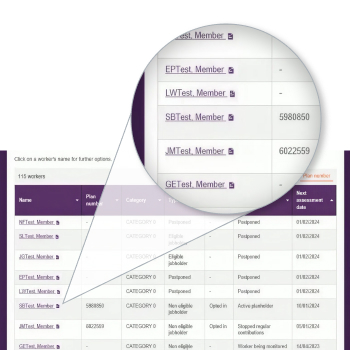
1. From the Workforce page, find the employee you want to update and select the employee’s name in the left-hand column.
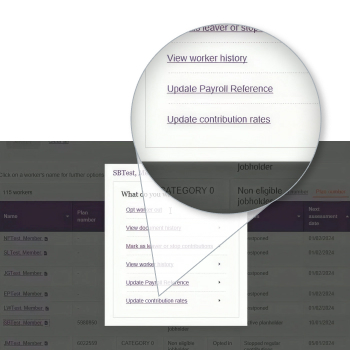
2. Select ‘Update contribution rates’ from the pop-up menu.
3. If this option isn’t available but the ‘Edit details’ option is, you can watch the ‘Editing an employee’ section of our video Managing your workforce.
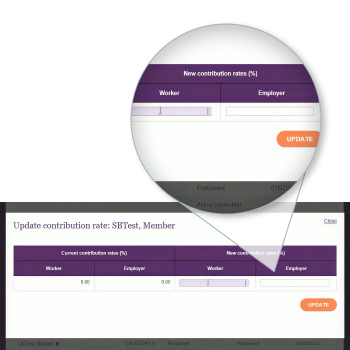
4. A pop-out window will show the employee’s current contribution rates and fields for the new rates. Enter the new employee contribution rate, employer contribution rate, or both. Select ‘Update’ to save the changes. You’ll be asked to confirm that the information is correct and that you are happy to proceed.
5. When the confirmation message appears, select Return to workforce.
Step three: Next steps
- For employees with a plan number updated by importing a file or one at a time, the changes will take effect from their next contribution. Your employees will receive documents confirming the update and a new plan certificate.
- For employees updated individually before their plan is created, the updated rates will be confirmed in their welcome pack when they start their plan.
CSV file tips
- Use a CSV file format. In most computers the this is listed as CSV (comma delimited) *.csv. We can’t accept other CSV file formats such as UTF-8, macintosh and MS-DOS.
- Do not include pound signs, percentage signs, commas, formulas, totals, subtotals or blank rows.
- Enter contribution rates as numbers up to two decimal places. For example, enter 3% as 3.00.
- Use accurate identifying information so the dashboard can match the employee record. Where possible, include the
- National Insurance number, as this helps identify your employees reliably.
Frequently asked questions
Can I update fixed contribution amounts through this process?
No. This process is for contribution percentage rates. If a plan is set up for fixed contribution amounts, use the Contact us page in the dashboard to tell Royal London about the changes you want to make.
Should I upload all employees or only the ones changing?
You can do either. If you upload all employees, the dashboard will identify which records need updating. If you prefer, you can upload only the employee records where rates need to change.
What if the dashboard cannot find an employee in my file?
Check the employee details in your CSV file. If the details are incorrect, go back, update the file and import it again. If the problem continues, search for the employee on your workforce page and update them manually as needed.
What if an employee has no plan number?
If an employee has no plan number, select them individually from the Workforce page and update their rates using the ‘Edit Details’ option. Find out how to do this by watching the ‘Editing an employee’ section of our video Managing your workforce.
Can I update an employee who has already received a plan?
Employees who already have a plan number can be updated both individually and using the bulk option.
Can I update someone who has left employment?
No. Employees marked as left employment in the dashboard cannot be updated through this process.
When will the new contribution rates apply?
For updates made by importing a file, the changes will take effect from the employee’s next contribution.
Will employees be told about the change?
Yes. Employees will receive documents confirming the updates and a new plan certificate. If the update is made before the plan is created, the updated rates will be confirmed in the employee’s welcome pack.
Who should I contact if I need help?
If you have questions about managing your scheme online, speak to your Royal London servicing team.