Pension scheme re-enrolment: using full run
This guide will help you use the full run system for your pension scheme's re-enrolment, a process otherwise known as cyclical re-enrolment. It provides step-by-step instructions for the four key stages of your workplace pension re-enrolment duties.
Key information
- On this page you'll find a step-by-step guide on using the full run system to process your re-enrolment
- You’ll need to be registered for your scheme's auto enrolment dashboard and be authorised to act on behalf of your company.
Using the full run system
With the full run system, we'll be helping you manage your assessments, issuing statutory communications and keeping records. We'll use the information we hold on our records to help you with each step of your re-enrolment too.
Step one: choose a date
You need to choose one suitable re-enrolment date that will apply to all eligible jobholders; you can’t choose different dates for different categories of employee, for example weekly and monthly paid employees.
As you’re using our full run system, we’ll use the information we hold on our records, for example your pay reference period, to suggest some suitable dates to help you choose your re-enrolment date. This will help you to avoid part month contributions.
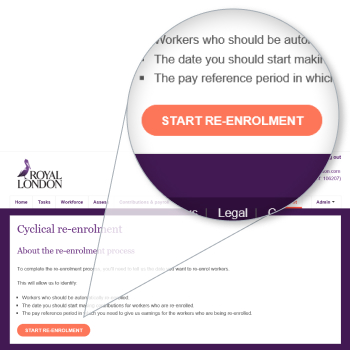
How to select your re-enrolment date online using the full run system
Click on the cyclical re-enrolment tab on the right-hand side of the navigation panel on your dashboard and click start re-enrolment.
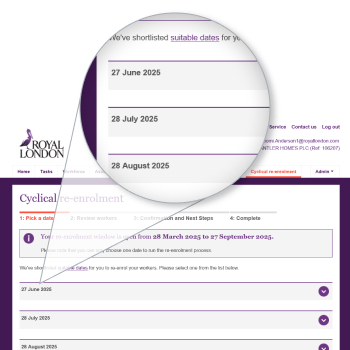
Now choose your re-enrolment date from the list we’ve suggested on the screen.
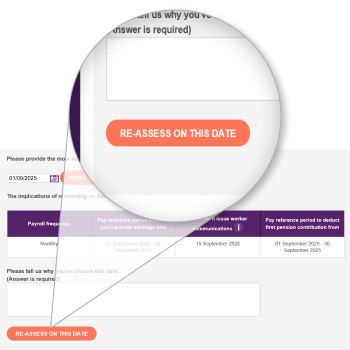
- If none of the dates we’ve suggested are suitable, you can enter a different date using the calendar provided. You’ll need to give us a reason why you’ve chosen this date.
- Once you’ve decided on your re-enrolment date, click re-assess on this date button on the screen.
Step two: update and review your employees
You need to make sure your employee data is up to date so that you know who to re-enrol. It's a good idea to check you have the right contact details for your employees. You should also check that you're not including anyone who has left your employment.
- If you need a reminder of how to update your data watch our auto enrolment dashboard videos.
- Once your data is up to date you you then need to review them to make sure they should be included in your assessment.
Reviewing your employees using the full run system
Once you've selected a date your cyclical re-enrolment page will present a list of potential employees to be assessed. For a reminder of who should be selected for re-enrolment visit our guide Re-enrolment: what you need to know.
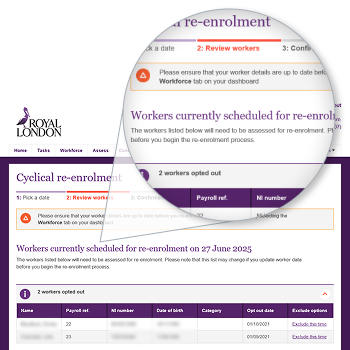
- You should review these employees ensuring their status is correct.
- You should update any employees that you no longer have duties for.
- Any employees that should be excluded from re-enrolment can be updated on this page by selecting the 'Exclude this time' option and providing the relevant reason.
- Once happy you can hit continue to move to the next stage.
You’ll be prompted to complete an assessment on your chosen re-enrolment date.
Step three: assess and communicate
At the re-enrolment date, you’ll need to check which employees are eligible for re-enrolment. This means that any employees you’ve not excluded need to be assessed for age and earnings and if they're eligible they should be re-enrolled.
It's your duty to make sure that communications with employees affected by re-enrolment are issued. You’ll need to send them statutory communications telling them that they’ll be re-enrolled, what this means for them and that they can choose to opt out.
However, with our full run system, you’ll complete an assessment using our system and then we'll issue these communications for you.
Assessing and communicating employees re-enrolment using the full run system
When you've reviewed your employees and confirmed you're happy, the cyclical re-enrolment page will prompt you to check the assess tab on your dashboard. If you have employees to assess on you re-enrolment date, you should run the assessment when you have employee earnings figures at your re-enrolment date to hand.
- If you need a reminder of how to perform an assessment, watch our auto enrolment dashboard videos.
- Once completed we’ll issue re-enrolment notices to your eligible employees.
- Once you've completed your assessment or if you don't have any employees to assess, the page will move to the complete stage at your chosen re-enrolment date or the following day if this date is in the past.
- We’ll then provide the information you need for your re-declaration of compliance.
Eligible jobholders
As defined by the Pensions Regulator, eligible jobholders:
- earn over £10,000 a year
- are age 22 but below State Pension age
- are working in the UK.
You must automatically enrol eligible jobholders into your scheme, and you're required to contribute to their retirement.
For more detail on the different types of employees for auto enrolment, please read the FAQs.
Step four: re-declare compliance
As part of your re-enrolment duties, a re-declaration of compliance must be submitted to The Pensions Regulator every 3 years. This applies from the auto enrolment start date or the last re-enrolment date.
- You’ll need to do this through The Pensions Regulators' website, you may already have log in details.
- You’ll be asked for information about the numbers of employees in your scheme including those you’ve re-enrolled.
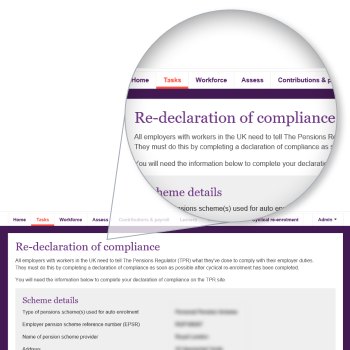
Re-declaring compliance using the full run system
We’ll provide you with a task on your dashboard to help you meet your re-declaration duty. For more information see the completing your re-declaration of compliance page.
What's next?
You don’t have to do anything further for re-enrolment until your next re-enrolment date in three years time.
Your current chosen re-enrolment date will determine the date your next re-enrolment window opens. We'll get in touch with you shortly before that happens.
As we'll issue re-enrolment notices on your behalf, it will include information on how your employees can opt out again. Visit our guide Opting employees out for more information.
Need more help?
If you need further advice on choosing your re-enrolment date, deciding which employees to re-enrol or communicating with your employees, you should speak to your financial adviser.
If you have questions about completing the re-enrolment process for your Royal London scheme online, you should contact your Corporate Servicing Team, using the contact us link on your auto enrolment dashboard.
What are the different types of employee as defined for auto enrolment?
The Pensions Regulator sets out your employee duties based on their age and earnings, they will tend to fall into one of these groups:
Eligible jobholders:
- earn over £10,000 a year
- are age 22 or over but below State pension age
- working in the UK.
You must automatically enrol eligible jobholders into your scheme, and you're required to contribute to their retirement.
Non-eligible jobholders:
- earn over £10,000 a year
- are age 16 or over but under 22 or State pension age or over but under 75
- working in the UK
or
- earn less than £10,000 a year but more than £6,240
- are aged 16 or over but below 75
- and are working in the UK.
If a non-eligible Jobholder asks to join your scheme, you must enrol them and pay regular employer contributions.
Entitled workers:
- earn less than £6,240
- be aged 16 or over but below 75
- working in the UK.
If an entitled worker asked to join your scheme you must enrol them, but you aren't legally required to contribute to their pension.
What's the difference between full run and payroll assessment system?
We’ve provided two versions of the auto enrolment dashboard giving you the flexibility to manage some of your duties in house.
Our payroll assessment system gives you a simplified dashboard that allows your payroll software or provider to handle employees’ assessments and the generation of their statutory communications. This means most of your automatic enrolment duties will be managed directly within your payroll system.
With full run, our software supports you in completing all your automatic enrolment duties including assessing your employees and issuing their statutory communications.
How do I know if I'm using the full run or payroll assessment system?
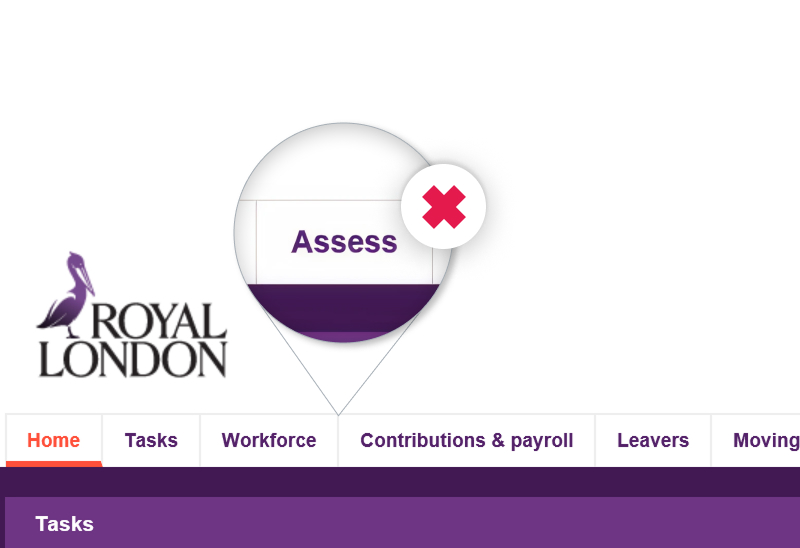
If you’re using the full run system you’ll see an ‘Assess’ tab in your dashboard’s navigation:
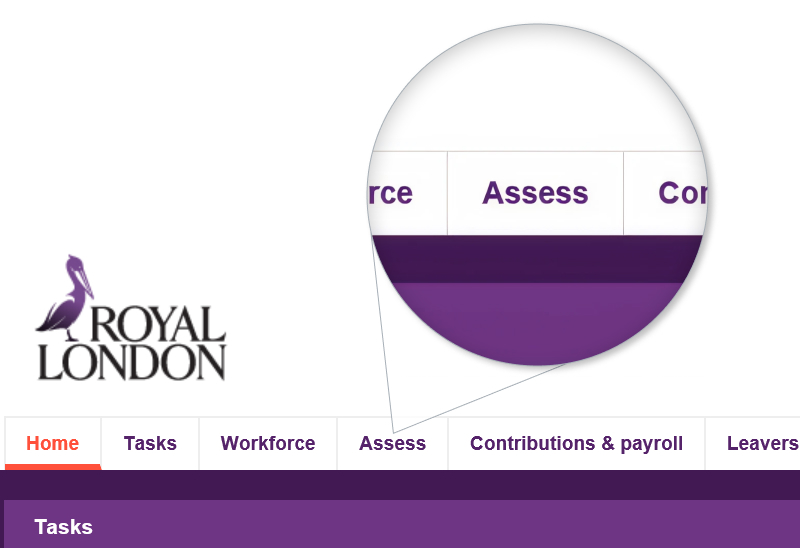
If you don’t have an ‘Assess’ tab this means you’re using our payroll assessment system.