Understanding pension contribution warnings and validation messages
What these messages mean, what to check and how to continue when making your pension schemes contributions using the auto enrolment dashboard.
Key information
- When you review and submit a contribution schedule, you may see a warning or validation message. These checks help make sure your employees have been assessed and contribution amounts are correct before you make the payment.
- Some messages let you continue after reviewing the impact; others must be resolved before a contribution can be collected.
What type of messages are you seeing?
Employees with missing assessments
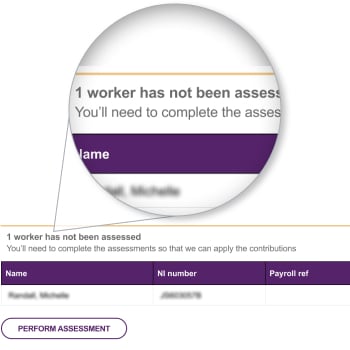
This message will usually read "x workers have not been assessed".
What this means
On Review Schedule, this amber warning means that one or more employees need a workforce assessment for the pay reference period. The wording changes depending on whether one employee or multiple employees are affected.
What you need to do
1. Select Perform assessment.
2. Enter the earnings payable for each affected employee in the pay reference period.
3. Check the pay reference period shown at the top of the assessment pop-out.
4. Complete the assessment before continuing.
Errors entering earnings
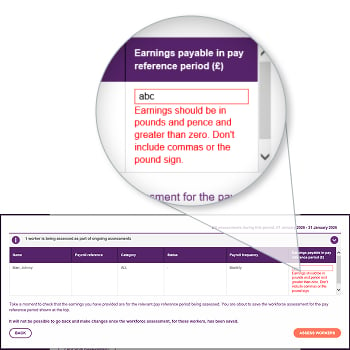
There are two common errors, "Earnings should be in pounds and pence and greater than zero. Don’t include commas or the pound sign" and "Earnings must be a number between 0.01 and 1 million".
What this means
The validation appears when something is entered into the Earnings payable in pay reference period box that is not in the correct format.
When you will see it
- The field is blank
- You've entered text or another non-numeric value
- You've entered £0.00
- Some employees have valid earnings but one or more other fields are blank or invalid.
What you need to do
Enter a valid amount for every employee. The minimum value is £0.01. You can't select Assess Workers until all invalid entries have been corrected.
Before you save a workforce assessment
Take a moment to check that the earnings you've provided are for the relevant pay reference period being assessed. You're about to save the workforce assessment for the pay reference period shown at the top of the page.
It won't be possible to go back and make changes to these employees earnings once the workforce assessment has been saved.
What this means
You can't reopen this assessment to change the earnings afterwards.
What you need to check
- The pay reference period is correct.
- The earnings relate to that pay reference period.
- Every affected employees' earnings are complete and accurate.
If you continue without completing the assessment
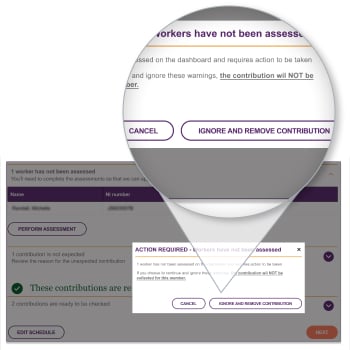
If you select Next while an assessment is outstanding, you'll be asked whether you want to continue.
Your choices
- Cancel and review the warning - return to Review Schedule and complete the assessment.
- Ignore and Continue - continue without assessing the affected employees.
What happens if you ignore this warning
The amber warning changes to red and reminds you that the employee hasn't been assessed and their contribution won't be taken. It will be excluded from the collection and deducted from the total shown on the confirmation page.
If the contribution should be collected, return to the schedule and complete the employees' assessment.
Other contributions we won't collect
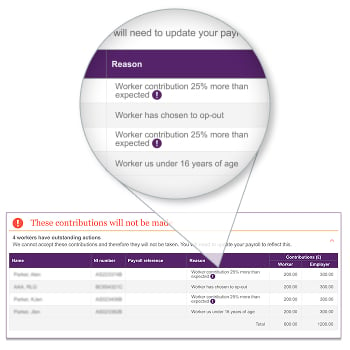
Common error messages include "Worker contribution 25% more than expected" and "Worker has chosen to opt-out".
What this means
The employees' contribution is 25% higher than the amount we expect based on the employees' contribution rate and earnings. The contribution is blocked and won't be collected until the issue is resolved. If we've received notification that the employee has opted out, we can't accept contributions for them.
What you need to check
1. Check whether the employee contribution was deducted after Income Tax.
2. If you're unsure how the amount was calculated, speak to your payroll provider.
3. If the contribution was deducted incorrectly, contact us.
4. Check the employees' contribution rate we hold, matches your payroll records and update it if required.
5. If the employee has chosen to start contributing after previously opting out, contact us.
This check only applies when both the expected and actual employee contributions are more than £0.00.
Once you've submitted your contribution
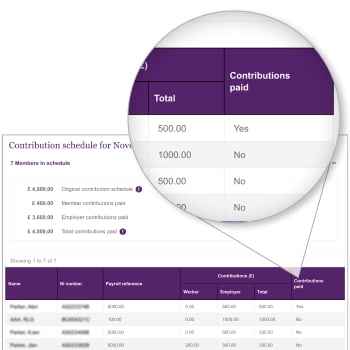
You'll see the contributions we've not collected by selecting 'View Schedule' accessed through the "Contributions & Payroll" tab on your dashboard.
The "Contributions Paid" column will show "No" for any employees we've not collected a contributions for.